Organize PDF Pages Online: Reorder, Rotate and Delete Pages
See every page of your PDF as a thumbnail, then drag pages into a new order, turn the sideways ones and remove the pages you do not need. One click saves a new PDF; the original stays untouched.
Complete guide: How to Reorder, Rotate and Delete PDF Pages for Free
- Free to use
- No sign-up
- No watermark
- Files stay on your device
Your file stays on your device: it is processed in this tab, not uploaded.Your file is processed in this browser tab and is not uploaded to ToolMany. Loading the page, analytics and ads still make normal network requests; see the Privacy Policy.
What this tool does
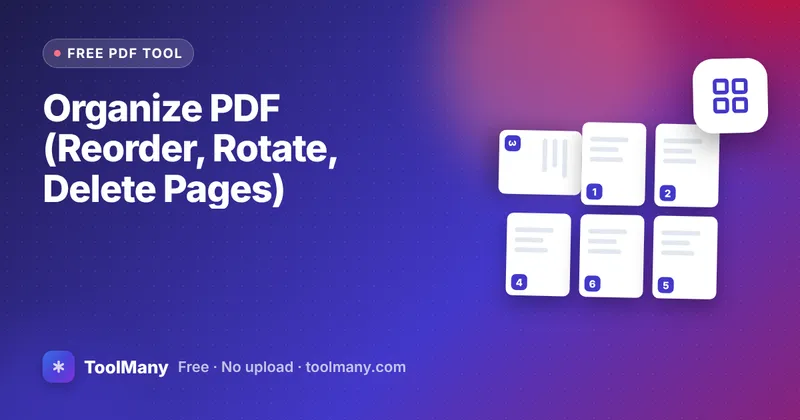
Organize PDF shows every page of a PDF as a thumbnail and lets you change the document before saving a new copy. You can drag pages into a different order, turn a single page by 90 degrees, remove pages you do not need, or reverse the whole document. The original file is never changed: you get a new PDF with exactly the pages you kept, in the order you set.
It replaces three separate jobs in one screen. Before, fixing one sideways scan meant splitting the file, rotating the page and merging everything back.
How to organize PDF pages
- Choose the PDF, drop it on the box or paste it. Thumbnails appear for every page.
- Drag a page to its new place, or use the left and right arrows under it (they also work on phones and with a keyboard).
- Use the rotate buttons on any page that is sideways or upside down.
- Press the bin icon on pages you want to remove. They turn grey; press again to bring one back.
- Press Save new PDF and check the downloaded file.
When it helps
- A scanner fed the pages of a contract in the wrong order.
- One receipt in a stack of scans came out sideways.
- A bank statement has a page you would rather not share.
- You merged several files and want to tidy the result before adding page numbers.
What we found in testing
With a 3-page test PDF we moved page 3 to the front, turned it 90 degrees clockwise and deleted page 2. The saved file had 2 pages, original page 3 first and page 1 second, and the first page carried a rotation of 90 degrees, confirmed with a separate PDF library.
Thumbnails are drawn one by one, so a 200-page scan takes a little while to appear on an older phone. Password-protected PDFs need to be unlocked first with Password Protect & Unlock.
Tips
- Use Reset to go back to the original order and rotation without reloading the file.
- To pull a few pages into a separate document, the Split PDF range box can be quicker than deleting many pages.
- Merge first with Merge PDF, then organize the combined file here.
Frequently asked questions
Can I rotate only one page?
Yes. Each thumbnail has its own rotate left and rotate right buttons.
Does organizing reduce quality?
No. Pages are copied into the new file as they are; nothing is re-compressed.
Can I undo a deleted page?
Yes, until you save. A deleted page stays on screen in grey with a restore button.
Will links and bookmarks still work?
Page content is kept exactly. Bookmarks and links that point to other pages may not survive a reorder, so check them if your document relies on them.
Is my PDF uploaded?
No. The thumbnails and the new PDF are made in your browser tab.
Last updated · How we test our tools
What to do next
- Number the pages now that they are in orderAdd Page Numbers to PDF
- Add pages from another PDF firstMerge PDF (Combine PDF Files)
- Check whether the new PDF can be made smallerCompress PDF (Lossless Optimizer)
- Stamp DRAFT or CONFIDENTIAL on every pageAdd Watermark to PDF
- Open a PDF in your browser and add text, drawings, shapes, stamps, images, or your signature on top of any pagePDF Editor: Edit & Sign PDF Free
- Type the page numbers or ranges you need (for example 1-3, 7, 10) and get them back as one new PDFSplit PDF & Extract Pages
Guides for Organize PDF (Reorder, Rotate, Delete Pages)
 Complete guideHow to Reorder, Rotate and Delete PDF Pages for Free
 How to Add Page Numbers to a PDF (Skip the Cover Page)Number the pages of a PDF in the corner or centre you choose, use Page 1 of 10 style, start after a cover page and avoid covering existing footer text.
 How to Rotate PDF Pages and Save the Change PermanentlyFix sideways or upside-down PDF pages so they open correctly for everyone. Why rotating in a viewer is not enough, and how to rotate only some of the pages.
 How to Scan Documents With Your Phone and Make One PDFTurn phone photos of paper documents into one clean, readable PDF you can email or upload. Covers lighting, cropping, file size and getting page order right.
More free pdf tools
PDF to JPG Converter (JPG & PNG)
Turn every page of a PDF, or just a continuous range, into a PNG or JPEG picture. Download pages one at a time or trigger separate downloads for all of them.
Open toolJPG to PDF Converter (PNG & WebP Too)
Put photos or scans on their own PDF pages, using A4, US Letter, or the image's own size. Pages follow the order in which you added the images; there are no reorder controls in the queue.
Open toolPassword Protect & Unlock PDF
Add a password to a PDF so only people who know it can open the file, or remove the password from a PDF you already have access to. Processing happens in your browser memory.
Open toolRotate PDF Pages
Fix sideways or upside-down pages by turning them 90, 180, or 270 degrees clockwise, then save the corrected PDF so it opens the right way up everywhere.
Open toolPDF to Text Converter
Pull the selectable text out of a digital PDF and get it back as plain text you can copy and edit. Scanned pages need the OCR tool instead, since they contain pictures rather than text.
Open tool