How to Reorder, Rotate and Delete PDF Pages for Free
By Ali Hamza · Published · 5 min read
On this page
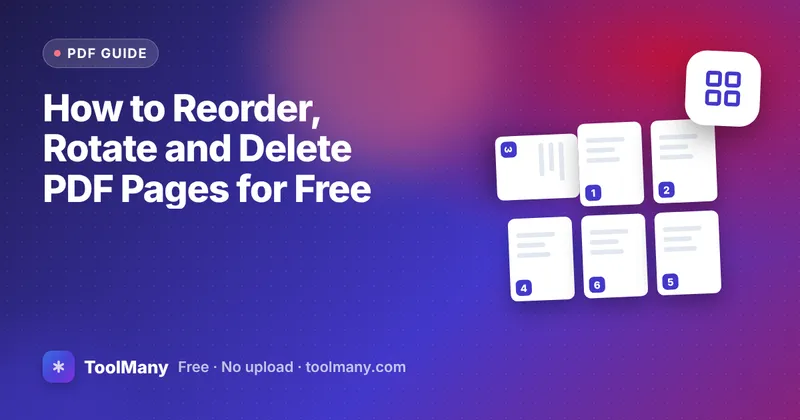
To reorder PDF pages, open the file in ToolMany's Organize PDF tool, drag the page thumbnails into the order you want, rotate any page that is sideways, remove pages with the bin icon and press Save new PDF. You get a fresh copy with exactly those pages; the original file stays as it was.
The rest of this guide covers the situations where page order goes wrong, how to handle long documents, and the small checks that save you from sending a broken file.
Why page order goes wrong so often
Most messy PDFs are not created messy. They become messy on the way:
- Feeder scanners pull a stack of paper in whatever order it was placed, and double-sided scans often come out as all the fronts followed by all the backs.
- Phone scanning apps add pages in the order you photographed them, which is rarely the order the document uses.
- Merging several files puts each file after the previous one, so a cover letter can end up behind the CV it introduces.
- Exports from presentation or design software sometimes include hidden or backup slides as extra pages.
Fixing this used to take three tools: split the file apart, rotate the odd page, merge it back. Organizing in one screen is quicker and much less error-prone, because you can see every page while you work.
Step by step: organizing a PDF
- Open Organize PDF and choose your file. You can also drop it on the box or paste it.
- Wait for the thumbnails. Each page is drawn as a small picture with its position number and its original page number underneath.
- Reorder. Drag a thumbnail to its new place. On a phone, or if you prefer the keyboard, use the left and right arrow buttons under each page.
- Rotate. Use the rotate buttons on a single page. Rotate all turns every page at once, which helps when a whole scan came out sideways.
- Delete. Press the bin icon. The page turns grey but stays visible, so you can restore it with one click if you change your mind.
- Press Save new PDF. The counter on the button tells you how many pages the new file will have.
- Open the downloaded file and scroll through it once before you send it.
Everything happens in your browser. The PDF is not uploaded, which matters for contracts, payslips, medical letters and bank statements.
Fixing a double-sided scan
A common problem: you scanned a 10-page, double-sided document on a single-sided feeder. You flipped the stack and scanned again, so the file now holds pages 1, 3, 5, 7, 9 followed by 10, 8, 6, 4, 2.
To fix it, drag page 10 (the last one) to second position, then the next back page to fourth position, and so on. With five pairs it takes under a minute. For long documents, it can be faster to split the fronts and backs into two files with Split PDF, use Reverse order on the backs, and then interleave them.
Rotating only the pages that need it
Scanned receipts and landscape tables are often the only sideways pages in an otherwise upright document. Rotating the whole file would break every other page, so rotate just those thumbnails. Rotation is saved into the new file, so the page opens the right way up in any PDF reader, on any device, for whoever you send it to.
If every page is sideways, the simpler Rotate PDF tool does the job in one click.
Removing pages before you share
Deleting pages is the safest way to share part of a document. A landlord might need the first page of an employment contract; a visa portal might want a bank statement without a page of unrelated transactions. Mark the pages you do not want, save, and send only the new file.
Keep in mind that deleting a page removes it from the new file completely, but the original on your device still contains it. Name the new copy clearly, for example Statement_March_pages1-3.pdf, so you never attach the wrong one.
Long documents and slow devices
Thumbnails are drawn one page at a time. On a modern laptop a 100-page PDF appears in a few seconds; on an older phone it can take longer. If a very large scan feels slow:
- Split it into parts first and organize each part.
- Close other heavy tabs, because the browser needs memory to hold the pages.
- Reduce the file size afterwards with the PDF optimizer if it is going by email.
Checks before you send
- Count the pages. The save button shows the number; the downloaded file should match.
- Look at the first and last page. These are the ones people notice.
- Check links and bookmarks if your document uses them. Page content is copied exactly, but bookmarks that point to moved or deleted pages may no longer lead anywhere.
- Add page numbers last. Once the order is final, Add Page Numbers so the numbering matches what readers see.
Frequently asked questions
Can I reorder pages in a PDF without Adobe Acrobat?
Yes. Organize PDF runs in any modern browser on Windows, macOS, Android and iPhone. There is nothing to install and no account to create.
Does reordering pages reduce quality?
No. Pages are copied into the new file as they are. Text stays sharp and images keep their original resolution.
Can I combine pages from two different PDFs?
Merge the files first with Merge PDF, then open the merged file in Organize PDF and arrange the pages.
What happens to a password-protected PDF?
It has to be opened with its password first. Use Password Protect & Unlock to remove the password if you are allowed to, organize the copy, then lock it again.
Is there a page limit?
There is no fixed limit. Very long documents depend on your device's memory, so split them if the thumbnails load slowly.